
1. Check Your Email Address and Password
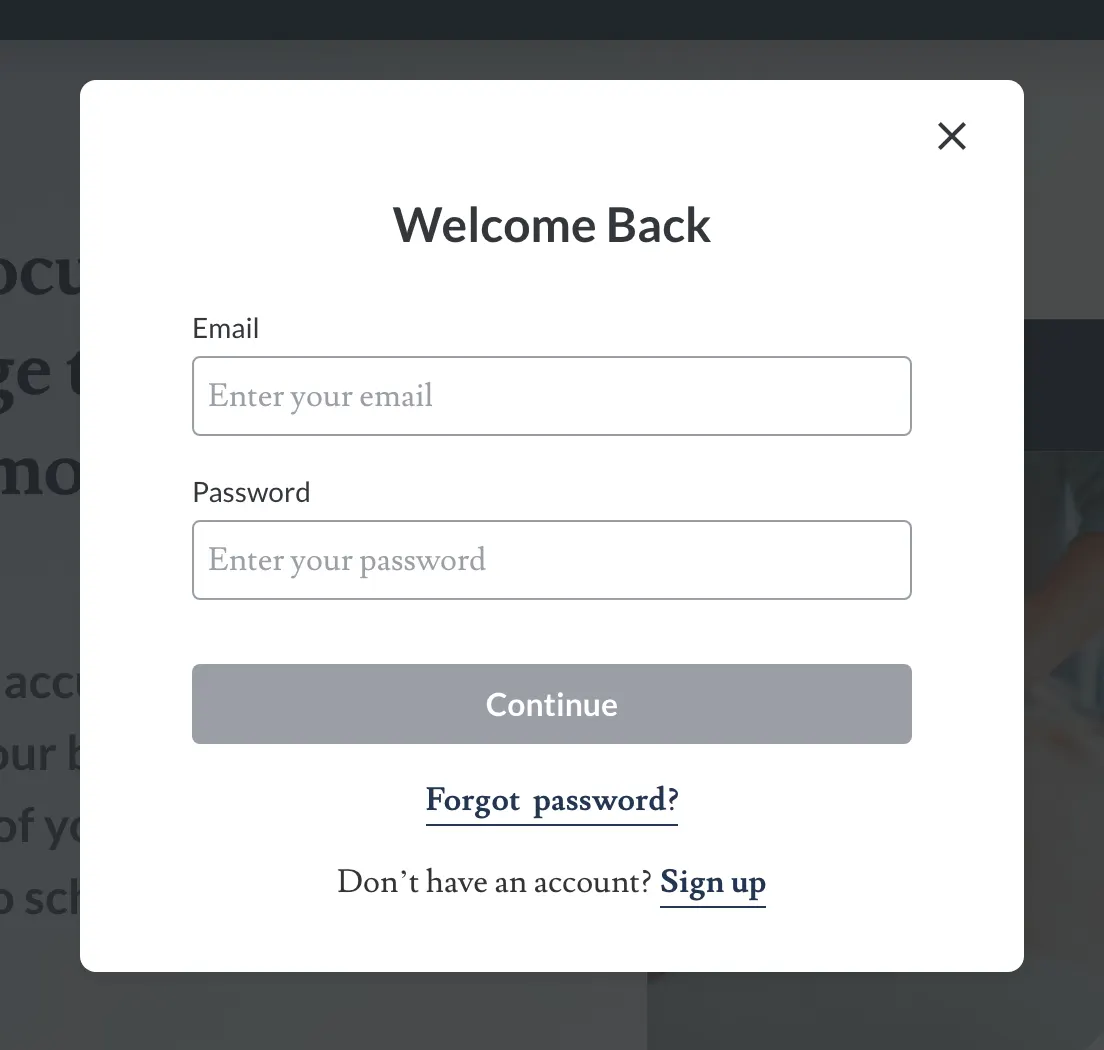
Make sure you are entering the email address associated with your Assess Treat Record account.
Check that your password has been entered correctly, including capital letters, numbers or special characters where applicable.
If your browser has automatically filled the login details, try entering them manually.
2. Forgot Your Password?
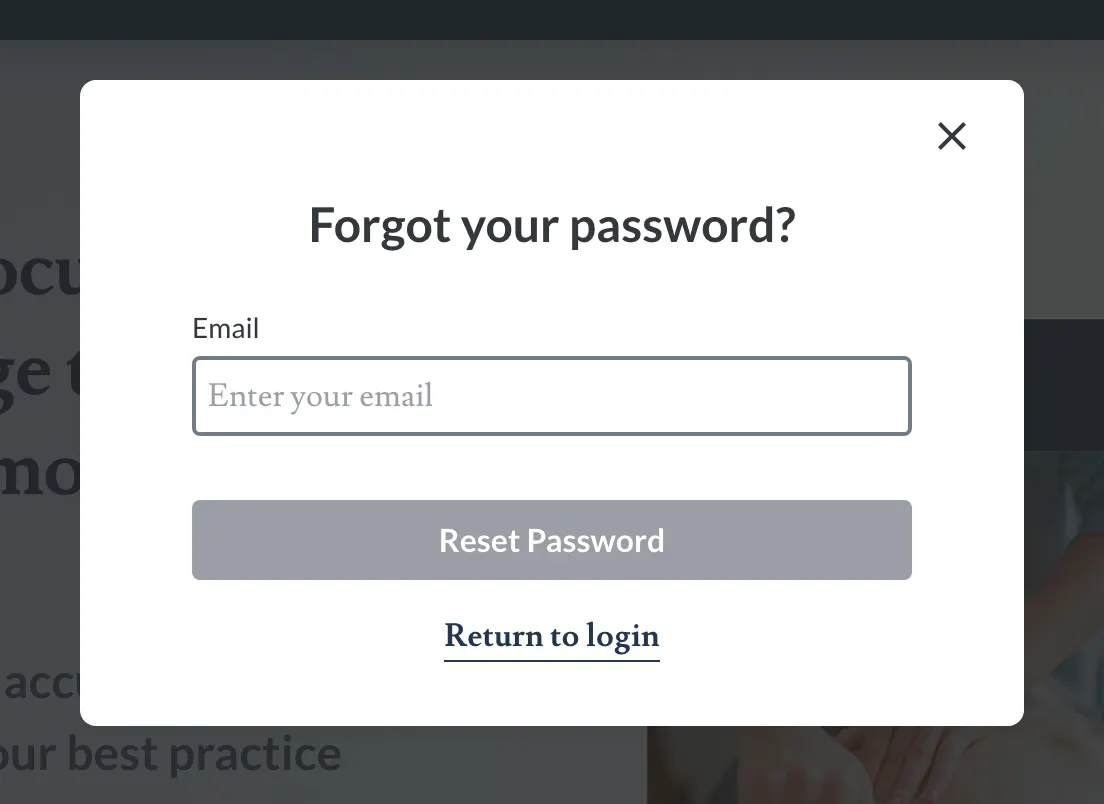
If you cannot remember your password, select Forgot password? from the Assess Treat Record login screen.
Follow the password reset process provided by Assess Treat Record.
3. Check Your Password Reset Email
After requesting a password reset, check the inbox for the email address connected to your Assess Treat Record account.
If you do not immediately see the email, also check your spam or junk folder.
4. Create Your New Password
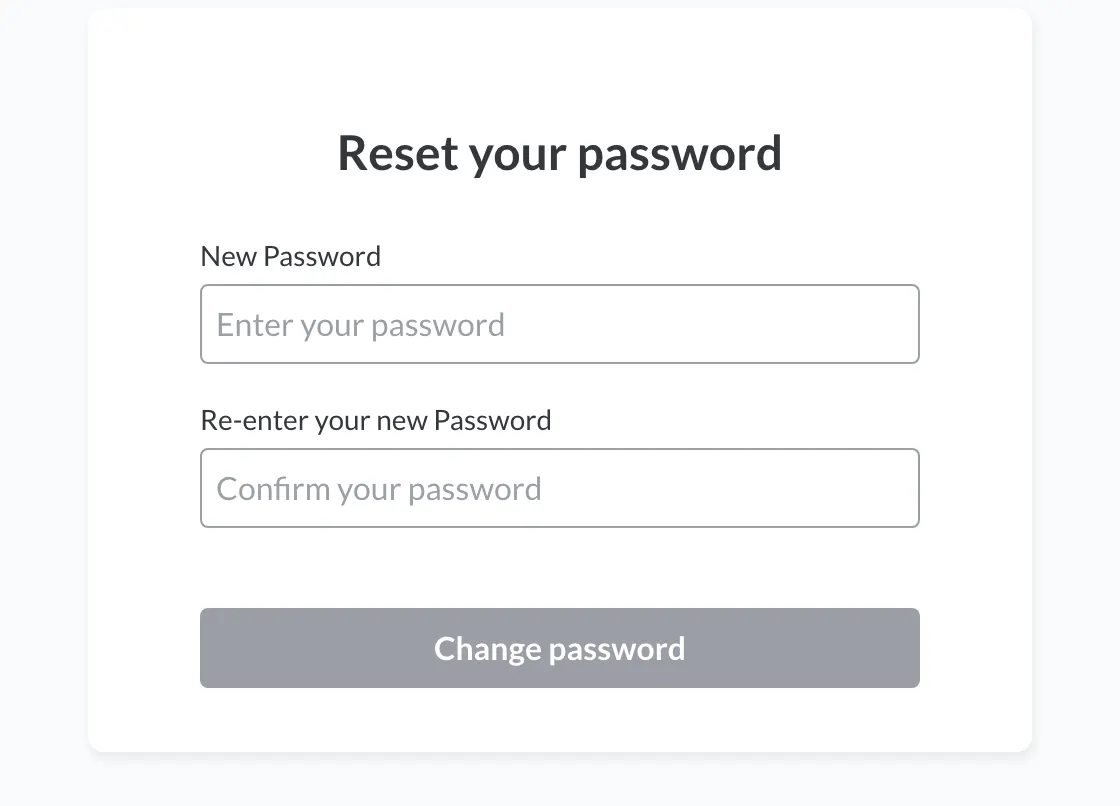
Open the password reset link and follow the on-screen instructions to create a new password.
Enter the new password carefully and complete the reset process before returning to the login screen.
5. Try Signing In Again
Return to the Assess Treat Record login screen and sign in using your email address and new password.
Make sure you use the newly created password rather than an older saved password.
6. Still Can’t Sign In?
If you have checked your email address, reset your password and are still unable to sign in, try the following basic checks:
Confirm you are using the correct Assess Treat Record login page
Refresh the page and try again
Close the browser tab and reopen Assess Treat Record
Check that your internet connection is working normally
These checks can help rule out common access issues.
Use the Email Address Connected to Your Account
Password reset requests need to be made using the email address associated with your Assess Treat Record account.
Don’t Have an Account Yet?
If you have not created an Assess Treat Record account yet, use the Sign Up option rather than the Login form.