Opening Settings
After signing in to Assess Treat Record, you can manage your personal account details, password, team members, business information, dry needling settings and subscription from the Settings area.
To open Settings, select the profile icon in the top-right corner and choose Settings.
Account
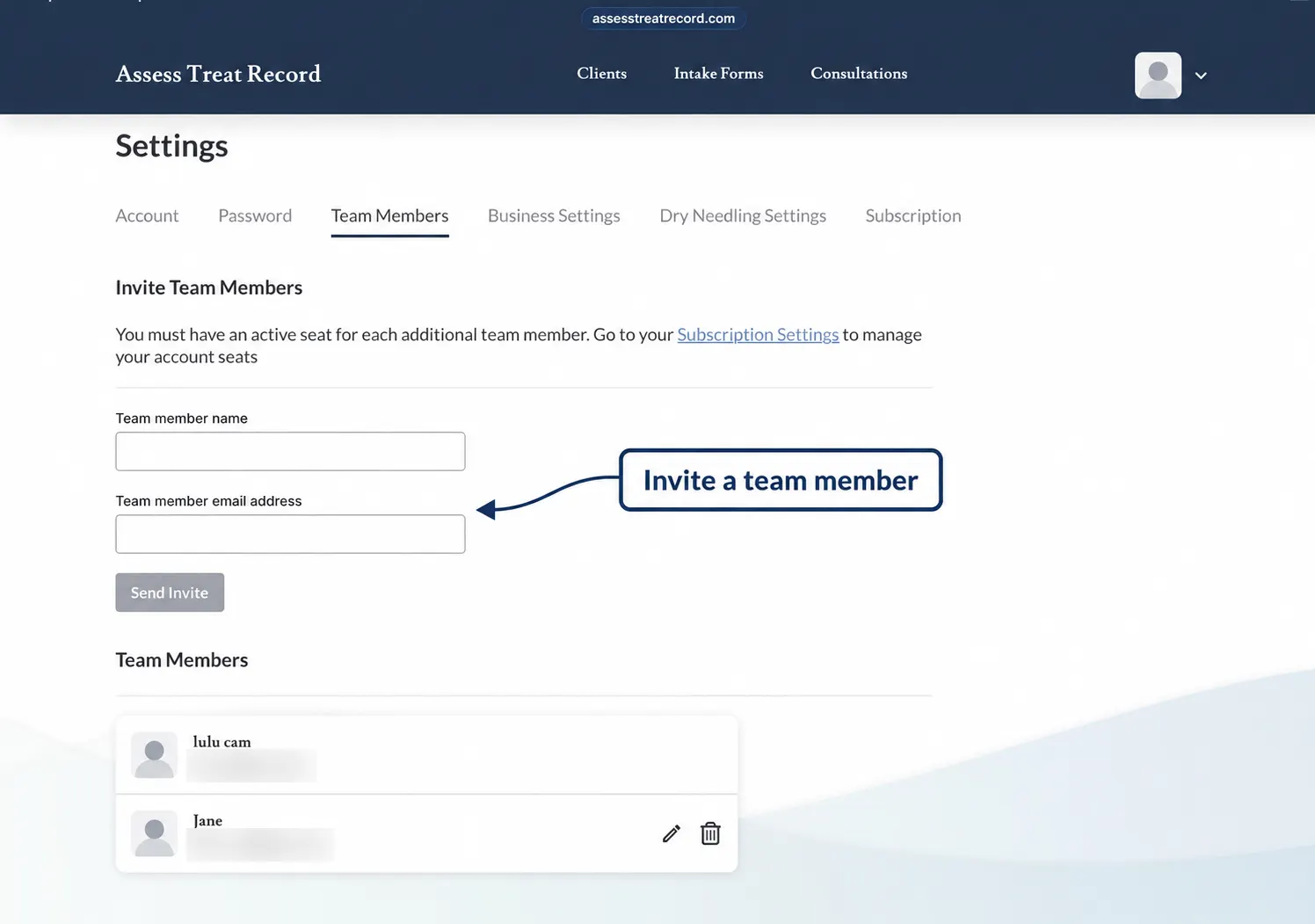
The Account tab contains your personal account information.
You can review or update:
- Profile image
- First Name
- Last Name
- Phone Number
- Country
When you have finished making changes, select Save Changes.
Password
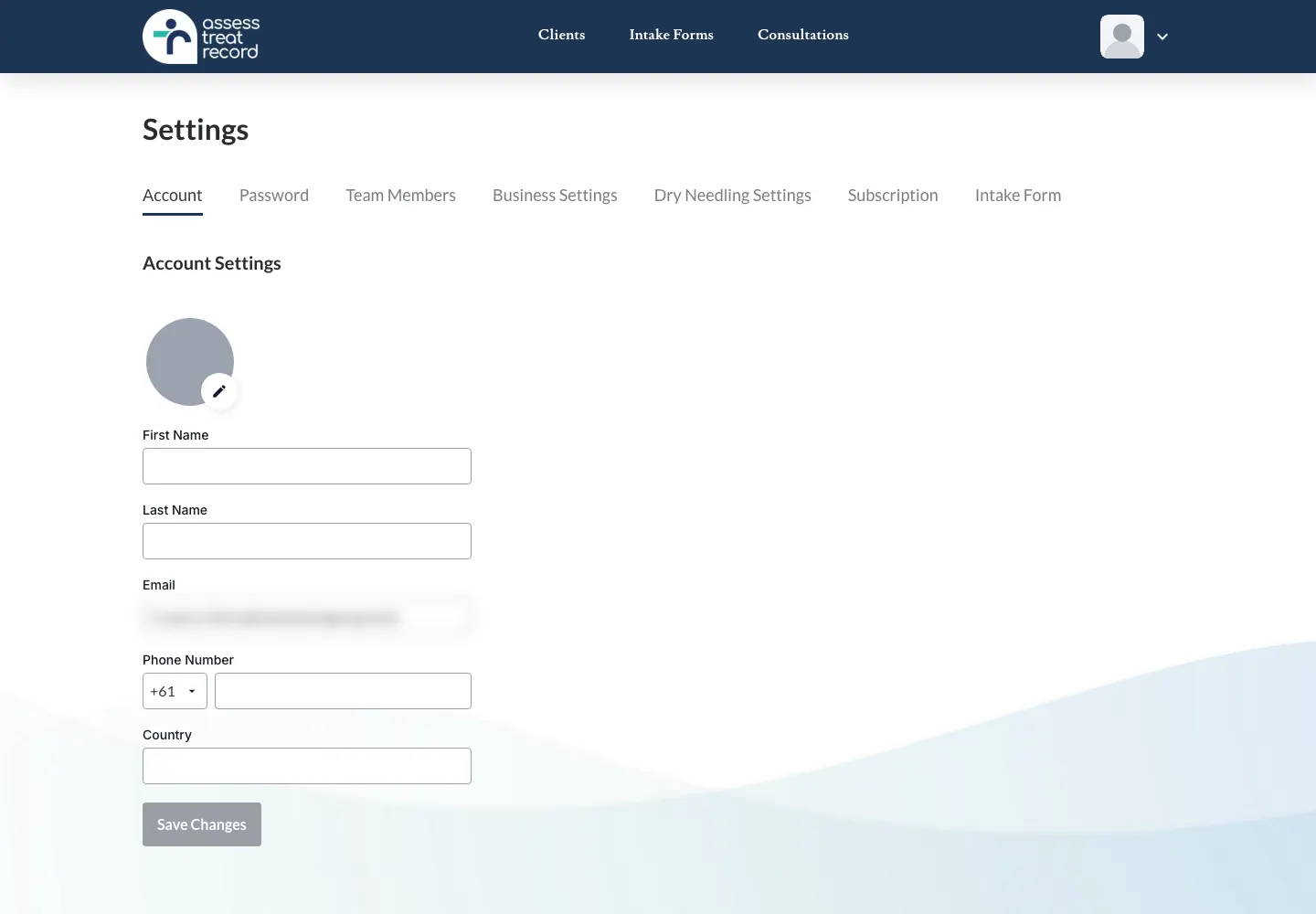
The Password tab allows you to update your account password.
To change your password, enter:
- your current password
- your new password
- your new password again to confirm it
Then select Update Password.
If you cannot remember your current password, select Forgot your password? and follow the password-reset link sent by email.
Team Members
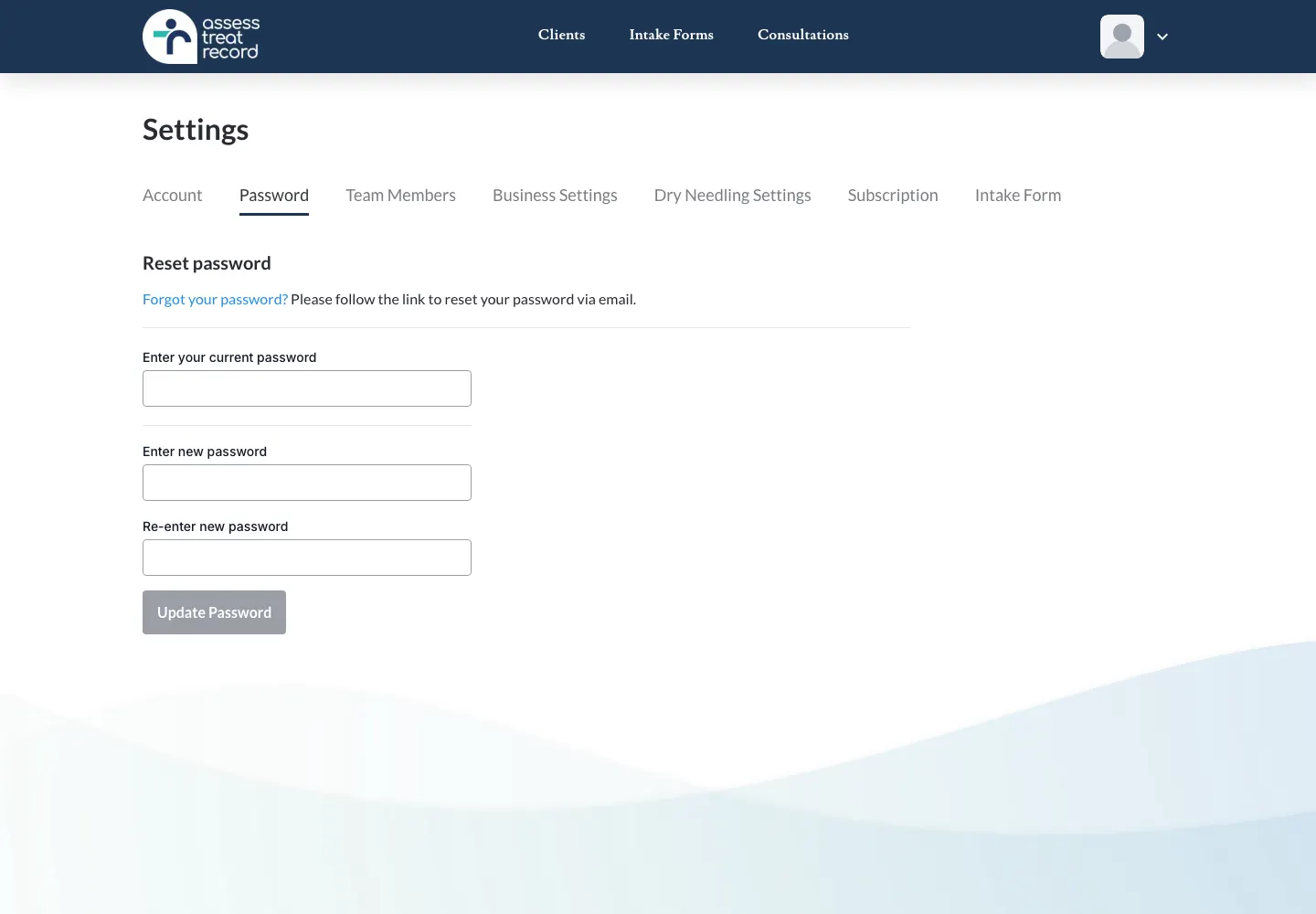
The Team Members tab allows you to invite additional team members to your Assess Treat Record account.
An active subscription seat is required for each additional team member.
To invite a team member, enter their:
- name
- email address
Then select Send Invite.
Existing team members are displayed underneath the invitation section.
If you need additional seats, use Subscription Settings to manage the number of seats on your account.
Business Settings
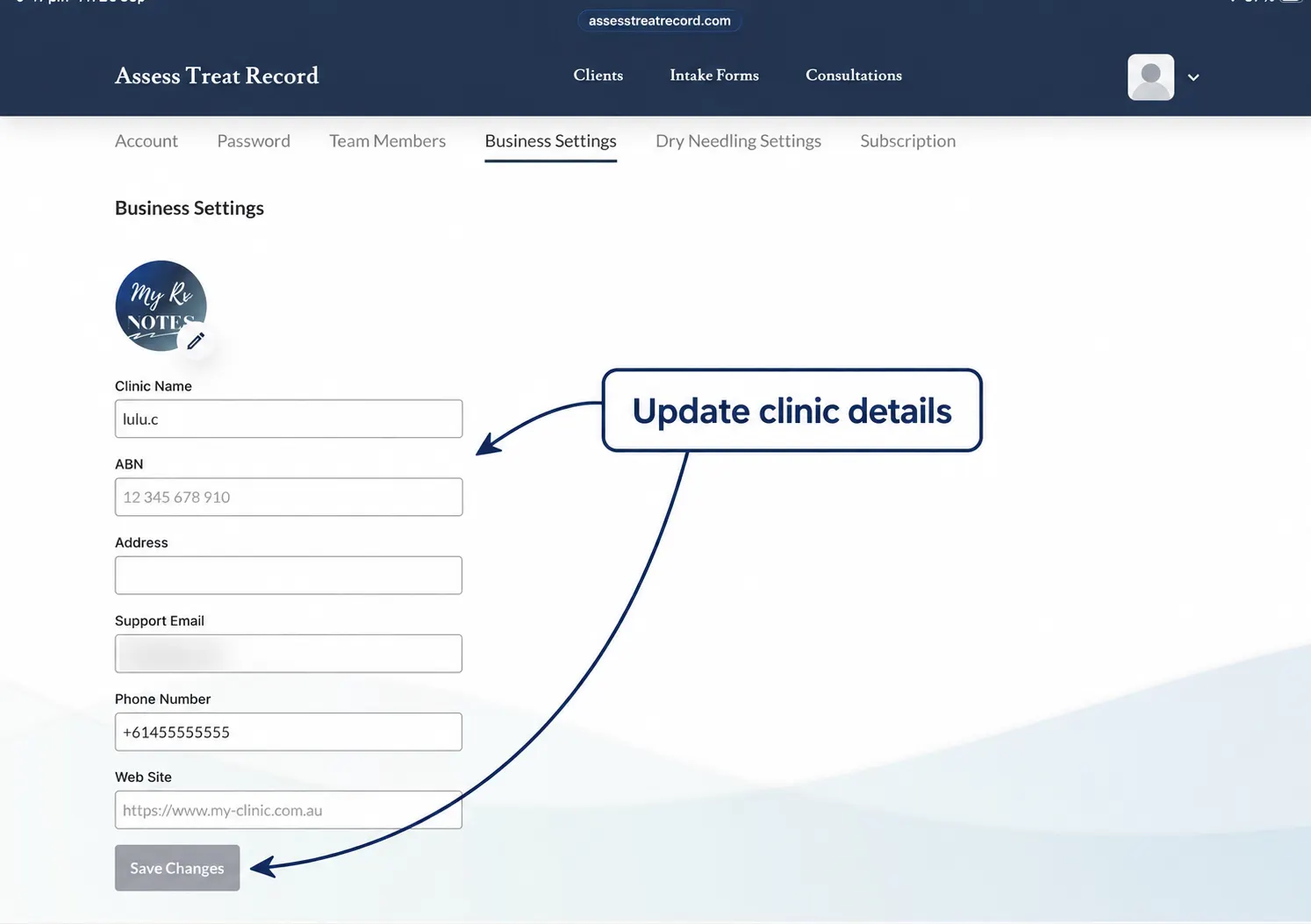
The Business Settings tab stores the details associated with your clinic or practice.
You can add or update: • Business or clinic logo • Clinic Name • ABN • Address • Support Email • Phone Number • Website
When the information is correct, select Save Changes.
Keeping this information up to date helps ensure your practice details are correctly associated with your Assess Treat Record account.
Dry Needling Settings
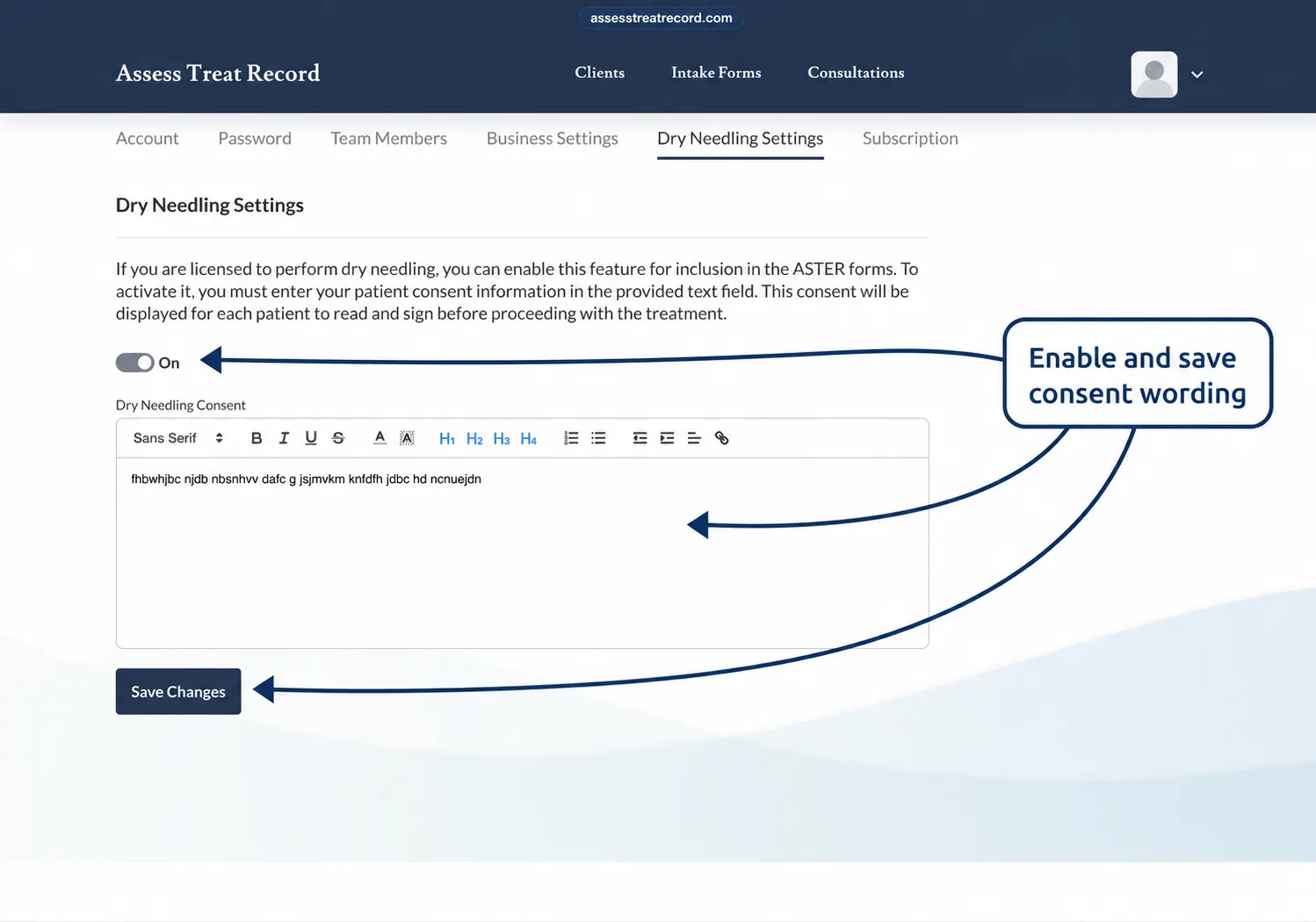
The Dry Needling Settings tab allows practices that provide dry needling to enable the dry needling feature.
Turn the setting On if you use dry needling within your practice and want the relevant dry needling information included within Assess Treat Record.
Enter your clinic’s Dry Needling Consent information in the text field provided.
This consent information can then be presented to the client to read and sign before dry needling treatment.
After entering the required consent information, select Save Changes.
Important: Only enable and use this feature where dry needling is appropriate to your qualifications, scope of practice and professional requirements.
Subscription
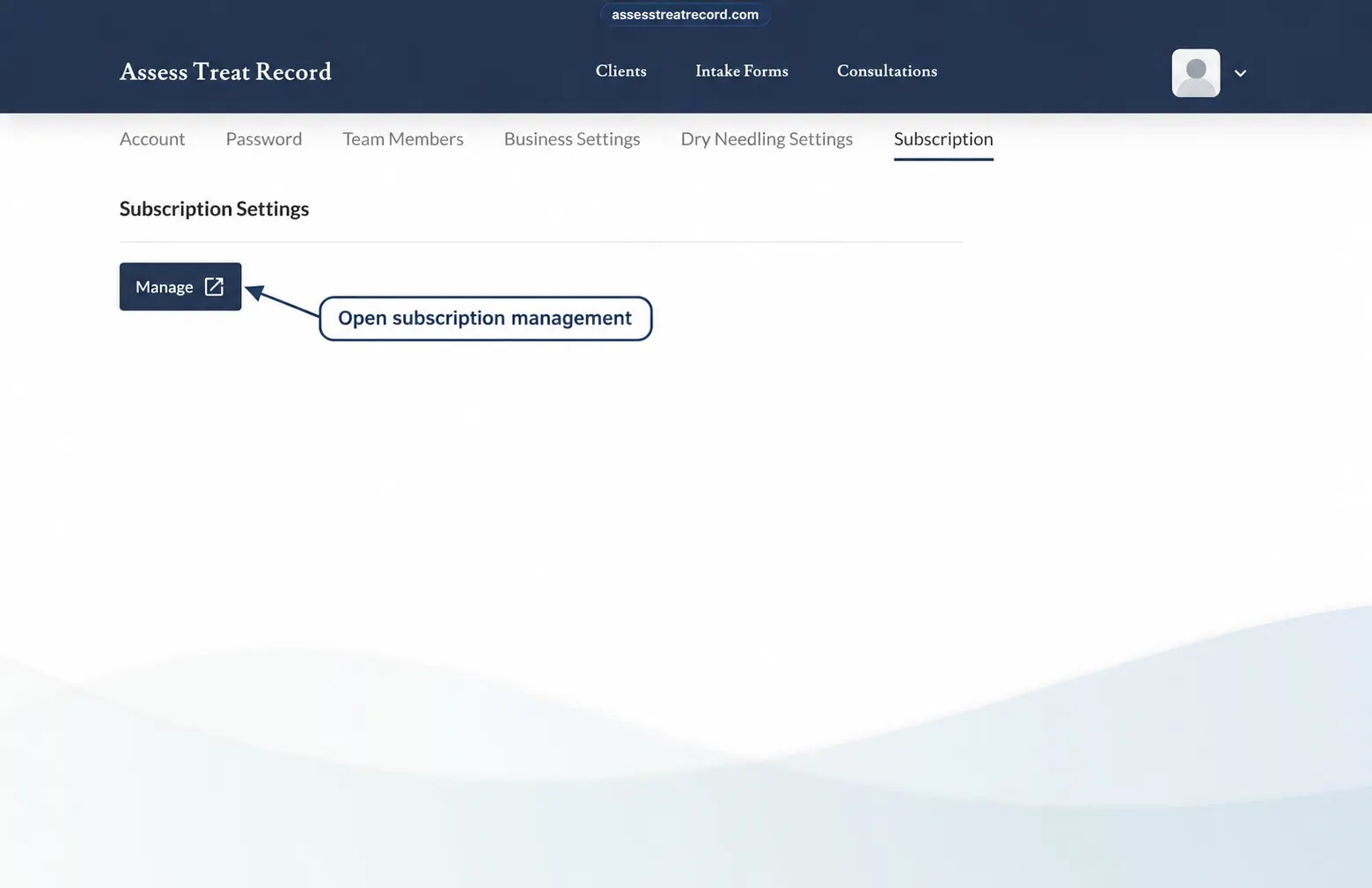
The Subscription tab provides access to your Assess Treat Record subscription settings.
Select Manage to open the subscription management area.
This is where you can manage the subscription options available to your account, including account seats where applicable.